


Free Web-Development-Applications Braindumps Download Updated on Apr 24, 2025 with 69 Questions
WGU Web-Development-Applications Exam Practice Test Questions
NEW QUESTION # 33
Which element attaches an external CSS document to a web page?
- A. <Meta>
- B. <Link>
- C. <style>
- D. <Script>
Answer: B
Explanation:
To attach an external CSS document to a web page, the <link> element is used within the <head> section of the HTML document.
* <link> Element:
* Purpose: Links external resources, such as stylesheets, to the HTML document.
* Attributes:
* rel="stylesheet": Specifies the relationship between the current document and the linked resource.
* href="path/to/stylesheet.css": Specifies the URL of the external stylesheet.
* Example:
<head>
<link rel="stylesheet" href="styles.css">
</head>
* Other Options:
* <style>: Used to embed internal CSS directly within the HTML document, not for linking external CSS.
* <script>: Used to embed or link to JavaScript files.
* <meta>: Provides metadata about the HTML document, not for linking stylesheets.
* References:
* W3C HTML5 Specification - The link element
* MDN Web Docs - <link>
By using the <link> element correctly, you can ensure that your web page is styled with external CSS, maintaining a separation of concerns and making your HTML more manageable.
NEW QUESTION # 34
Which layout method causes images to render to small or too large in browser windows of different sizes?
- A. Fluid
- B. Liquid
- C. Fixed width
- D. Relative width
Answer: C
Explanation:
A fixed-width layout method specifies exact pixel values for widths. This approach does not adapt to different screen sizes, leading to images rendering too small or too large on various devices.
* Fixed Width Layout:
* Definition: Uses specific pixel values for the width of elements.
* Example:
container {
width: 800px;
}
* Issues:
* Lack of Flexibility: Does not scale with the size of the viewport, causing images and other elements to appear incorrectly sized on different screen sizes.
* Comparison:
* Fluid/Liquid: Adapts to the screen size using percentages or other relative units.
* Relative Width: Also adapts using units like em or %.
* References:
* MDN Web Docs - Fixed vs. Fluid Layout
* W3C CSS Flexible Box Layout Module Level 1
Using fixed-width layouts can result in poor user experience across different devices, highlighting the importance of responsive design principles.
Top of Form
Bottom of Form
NEW QUESTION # 35
A web designer creates the following HTML code:
Which CSS selector applies only to the first line?
- A. #Welcome
- B. .Welcome
- C. .header
- D. #Header
Answer: A
Explanation:
To apply CSS only to the first line of a particular HTML element, the ID selector #Welcome should be used as per the given HTML structure.
* CSS ID Selector: The ID selector is used to style the element with a specific id.
* Usage Example:
#Welcome {
color: red;
}
In this example, the #Welcome selector will apply the red color style only to the element with id="Welcome".
References:
* MDN Web Docs on ID Selectors
* W3C CSS Specification on Selectors
NEW QUESTION # 36
Which markup ensures that the data entered are either a five-digit zip code or an empty string?
- A. Input required min=''s'' max=''s''
- B. <input type=''number'' value=''s''
- C. Input class ='' (0-9) (5)''>
- D. <input pattern=/d(5)''>
Answer: D
Explanation:
The pattern attribute in the <input> element is used to define a regular expression that the input value must match for it to be valid. The pattern \d{5} ensures that the data entered is either a five-digit zip code or an empty string (if the required attribute is not used).
* Pattern Explanation:
* \d{5}: Matches exactly five digits.
* This ensures that only a five-digit number or an empty string (if not required) is valid.
* Usage Example:
<input type="text" pattern="\d{5}" placeholder="Enter a 5-digit zip code"> This ensures that the input matches a five-digit zip code.
References:
* MDN Web Docs on pattern
* Regular Expressions Documentation
NEW QUESTION # 37
Which code segment correctly defines a function in JavaScript?
- A. Function addNumbers (a, b)
- B. Void addNumber(int a, int b)
- C. Function addNumber (in a, int b)
- D. Void addNumbers(a, b)
Answer: A
Explanation:
In JavaScript, functions are defined using the function keyword followed by the name of the function, a set of parentheses (), and a block of code enclosed in curly braces {}.
* Function Definition Syntax:
* Correct Syntax:
function addNumbers(a, b) {
// function body
}
* Explanation:
* function: Keyword to define a function.
* addNumbers: Name of the function.
* (a, b): Parameters for the function.
* { ... }: Function body containing the code to be executed.
* Incorrect Options:
* A. Void addNumbers(a, b): JavaScript does not use void to define functions.
* C. Void addNumber(int a, int b): JavaScript does not use void or type declarations (int).
* D. Function addNumber (in a, int b): JavaScript functions do not use type declarations.
* References:
* MDN Web Docs - Functions
* W3Schools - JavaScript Functions
NEW QUESTION # 38
Which attribute displays help text in an input field without specifying an actual value for the input?
- A. Placeholder
- B. Default
- C. For
- D. name
Answer: A
Explanation:
The placeholder attribute in an <input> element displays help text in the input field without specifying an actual value for the input. This text disappears when the user starts typing.
* Placeholder Attribute: This attribute provides a hint to the user about what type of information is expected in the field.
* Usage Example:
<input type="text" placeholder="Enter your name">
The input field will show "Enter your name" as help text.
References:
* MDN Web Docs on placeholder
* W3C HTML Specification on Input Placeholder
NEW QUESTION # 39
Which feature was introduced in HTML5?
- A. Adherence to strict XML syntax rules
- B. Ability to hyperlink to multiple web pages
- C. Native drag-and-drop capability
- D. Addition of CSS in the HTML file
Answer: C
Explanation:
HTML5 introduced several new features that enhanced web development capabilities significantly. One of the notable features is the native drag-and-drop capability.
* Native Drag-and-Drop Capability:
* Description: HTML5 allows developers to create drag-and-drop interfaces natively using the draggable attribute and the DragEvent interface. This means elements can be dragged and dropped within a web page without requiring external JavaScript libraries.
* Implementation:
* Making an Element Draggable: To make an element draggable, you set the draggable attribute to true:
<div id="drag1" draggable="true">Drag me!</div>
* Handling Drag Events: You use event listeners for drag events such as dragstart, dragover, and drop:
document.getElementById("drag1").addEventListener("dragstart", function(event) { event.dataTransfer.setData("text", event.target.id);
});
document.getElementById("dropzone").addEventListener("dragover", function(event) { event.preventDefault();
});
document.getElementById("dropzone").addEventListener("drop", function(event) { event.preventDefault(); var data = event.dataTransfer.getData("text"); event.target.appendChild(document.getElementById(data));
});
* Example: This example demonstrates a simple drag-and-drop operation:
html
Copy code
<div id="drag1" draggable="true">Drag me!</div>
<div id="dropzone" style="width: 200px; height: 200px; border: 1px solid black;">Drop here</div>
* References:
* W3C HTML5 Specification - Drag and Drop
* MDN Web Docs - HTML Drag and Drop API
* HTML5 Doctor - Drag and Drop
HTML5's native drag-and-drop feature streamlines the process of creating interactive web applications by eliminating the need for third-party libraries, thus making it a powerful addition to the HTML standard.
NEW QUESTION # 40
Which element relies on the type attribute to specify acceptable values during form entry?
- A. <Select>
- B. <input>
- C. <Button>
- D. <Option>
Answer: B
Explanation:
The <input> element relies on the type attribute to specify acceptable values during form entry. Different input types include text, email, number, password, etc.
* Input Types: The type attribute determines the kind of input control and the acceptable values for that control.
* Usage Example:
<input type="email" placeholder="Enter your email">
<input type="number" min="1" max="10">
These input elements specify acceptable values for email and number inputs respectively.
References:
* MDN Web Docs on <input>
* W3C HTML Specification on Input Types
NEW QUESTION # 41
Given the following CSS code: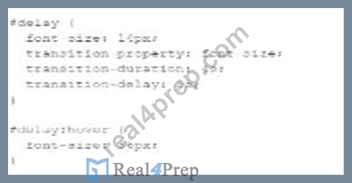
How many seconds elapse before the font-size property begins to increase when a user hovers a mouse pointer over the delay element?
- A. 0
- B. 1
- C. 2
- D. 3
Answer: D
Explanation:
The CSS transition-delay property specifies how long to wait before starting a property transition. In the given CSS code, the transition-delay is set to 2s.
* CSS Transition Properties:
* transition-property: Specifies the CSS property to which the transition is applied (font-size in this case).
* transition-duration: Specifies how long the transition takes (4s).
* transition-delay: Specifies the delay before the transition starts (2s).
Example:
* Given HTML:
<div id="delay">Hover over me</div>
* Given CSS:
#delay {
font-size: 14px;
transition-property: font-size;
transition-duration: 4s;
transition-delay: 2s;
}
#delay:hover {
font-size: 36px;
}
Explanation: When a user hovers over the element with id="delay", it will wait for 2 seconds before the transition effect on font-size starts.
References:
* MDN Web Docs - transition-delay
* W3C CSS Transitions
NEW QUESTION # 42
Given the following HTML code:
Which line of code should replace the first line to ensure that users can pause and restart the video?
- A.

- B.

- C.

- D.

Answer: D
Explanation:
To ensure that users can pause and restart the video, the controls attribute needs to be added to the <video> tag. This attribute provides the user with controls to play, pause, and adjust the volume of the video. The correct line of code that should replace the first line in the provided HTML to achieve this functionality is:
<video width="360" height="270" controls>
Here's the comprehensive explanation:
* controls Attribute: The controls attribute is a boolean attribute. When present, it specifies that video controls should be displayed, allowing the user to control video playback, including pausing, playing, and seeking.
* HTML Structure:
* Original Line:
<video width="360" height="270">
* Revised Line:
<video width="360" height="270" controls>
* Usage Example:
<video width="360" height="270" controls>
<source src="video.mp4" type="video/mp4">
Your browser does not support the HTML5 video element.
</video>
In this example, adding the controls attribute provides the user with play, pause, and volume controls.
References:
* MDN Web Docs on <video>
* W3C HTML5 Specification on <video>
NEW QUESTION # 43
What does a form field default to if the type attribute is omitted from a form?
- A. Range
- B. number
- C. Date
- D. Text
Answer: D
Explanation:
If the type attribute is omitted from an <input> element, it defaults to text.
* HTML Input Default Type:
* Default Type: The default value for the type attribute in an <input> element is text.
* Example:
* Given the HTML:
<input>
* This will render as a text input field.
* References:
* MDN Web Docs - <input>
* W3Schools - HTML Input Types
NEW QUESTION # 44
What represents the value of the pattern attribute of an input element in an HTML
- A. A style sheet
- B. A regular expression
- C. A JavaScript function
- D. A SQL statement
Answer: B
Explanation:
The value of the pattern attribute in an input element is a regular expression. This regular expression is used to define what constitutes a valid value for the input.
* Regular Expressions: Regular expressions (regex) are sequences of characters that define search patterns. They are commonly used for string matching and validation.
* Usage Example:
<input type="text" pattern="\d{5}" placeholder="Enter a 5-digit number"> Here, the pattern attribute value is a regular expression that validates a five-digit number.
References:
* MDN Web Docs on pattern
* Regular Expressions Documentation
NEW QUESTION # 45
Which structure tag should a developer use to place contact information on a web page?
- A. <footer>
- B. <Aside>
- C. <Nav>
- D. <Main>
Answer: A
Explanation:
The <footer> tag is used to define a footer for a document or a section. A footer typically contains information about the author of the document, contact information, copyright details, and links to terms of use, privacy policy, etc. It is a semantic element in HTML5, which means it clearly describes its meaning to both the browser and the developer.
* Purpose of <footer>: The <footer> element represents a footer for its nearest sectioning content or sectioning root element. It typically contains information like:
* Contact information
* Copyright information
* Links to related documents
* Information about the author
* Usage Example:
<footer>
<p>Contact us at: [email protected]</p>
<p>© 2024 Example Company</p>
</footer>
In this example, the <footer> tag encloses contact information and copyright details.
* Semantic Importance: Using semantic elements like <footer> enhances the accessibility of the document and provides better context for search engines and other user devices.
References:
* MDN Web Docs on <footer>
* W3C HTML5 Specification on <footer>
NEW QUESTION # 46
Which CSS transformation method should a developer use to reposition an element horizontally on the 2-D plane?
- A. Translatex(n)
- B. Scale (x,y)
- C. Scalex(n)
- D. Skewx (angle)
Answer: A
Explanation:
The translateX(n) method in CSS is used to move an element horizontally on the 2-D plane by a specified distance. This transformation repositions the element along the X-axis.
* translateX(n) Method: The translateX(n) function moves an element horizontally by n units. Positive values move the element to the right, while negative values move it to the left.
* Usage Example:
element {
transform: translateX(100px);
}
In this example, the element is moved 100 pixels to the right.
* Properties:
* n: This represents the distance to move the element. It can be specified in various units such as pixels (px), percentages (%), ems (em), etc.
References:
* MDN Web Docs on transform
* W3C CSS Transforms Module Level 1
NEW QUESTION # 47
Which tag is required when importing the jQuery library?
- A. Script
- B. Body
- C. meta
- D. Section
Answer: A
Explanation:
The <script> tag is required when importing the jQuery library into an HTML document.
* Including jQuery:
* Purpose: The <script> tag is used to embed or reference executable code (JavaScript).
* Example:
<script src="https://code.jquery.com/jquery-3.6.0.min.js"></script>
* Explanation:
* The <script> tag should be placed in the <head> or at the end of the <body> to ensure that the library is loaded before the scripts that depend on it.
* References:
* jQuery Getting Started
* MDN Web Docs - <script>
NEW QUESTION # 48
What is the process for JavaScript from validation?
- A. Form fields are validated after the form is submitted but before form data is sent to the server
- B. Form fields are validated as me user inputs data after form data is sent to the server.
- C. User input is sent to the server after the form is completed tor validation.
- D. User input is sent to the server as fields are completed for validation.
Answer: A
Explanation:
JavaScript form validation typically occurs after the form is submitted but before the form data is sent to the server. This allows the client-side script to check the input data and prevent the form from being submitted if the data is invalid.
* Client-Side Validation:
* Before Form Submission: JavaScript validates the form fields after the user attempts to submit the form.
* Prevent Default Submission: If the validation fails, JavaScript can prevent the form from being submitted and display appropriate error messages.
* Usage Example:
document.getElementById("myForm").addEventListener("submit", function(event) { var isValid = true;
// Perform validation checks
if (!isValid) {
event.preventDefault(); // Prevent form submission
alert("Please correct the errors.");
}
});
This example prevents form submission if the validation fails.
References:
* MDN Web Docs on Form Validation
* W3C HTML Specification on Form Submission
NEW QUESTION # 49
Which 3D transform affects the distance between the z-plane and the user?
- A.

- B.

- C.

- D.

Answer: D
Explanation:
The perspective(n) method in CSS is used to affect the distance between the z-plane and the user, effectively changing the perspective depth of a 3D transformed element.
* perspective(n) Method: The perspective function defines how far the element is from the user. It affects the appearance of the 3D transformed element, giving it a sense of depth.
* Usage Example:
container {
perspective: 1000px;
}
In this example, the perspective is set to 1000 pixels, which defines the distance between the z-plane and the user.
* Properties:
* n: This represents the perspective distance. The lower the value, the more pronounced the perspective effect.
References:
* MDN Web Docs on perspective
* W3C CSS Transforms Module Level 1
NEW QUESTION # 50
Which attribute is related to moving the mouse pointer of an element?
- A. Onmouseover
- B. Onmouseup
- C. onmouseenter
- D. Onmouseout
Answer: A
Explanation:
The onmouseover attribute in HTML and JavaScript is used to execute a script when the mouse pointer is moved over an element.
* onmouseover Attribute: This event occurs when the mouse pointer is moved onto an element. It is commonly used to change styles or content of the element when the user interacts with it by hovering.
* Usage Example:
<p onmouseover="this.style.color='red'">Hover over this text to change its color to red.</p> In this example, the text color changes to red when the mouse pointer is moved over the paragraph.
References:
* MDN Web Docs on onmouseover
* W3C HTML Specification on Events
NEW QUESTION # 51
......
Updated Verified Web-Development-Applications dumps Q&As - Pass Guarantee or Full Refund: https://www.real4prep.com/Web-Development-Applications-exam.html
Updated Certification Exam Web-Development-Applications Dumps - Practice Test Questions: https://drive.google.com/open?id=1tKGBKSOFPlAjIAScadFzgGqQlVDZiw66